The best filters for portrait photos on iPhone
A good portrait filter flatters a face without announcing itself. Here is what to look for, and how to get there in a few taps.
The best portrait filters keep skin looking like skin. That means natural, believable tones. It means gentle contrast rather than harsh, a little warmth, and shadows that stay open instead of crushed to black. Anything that turns faces grey, orange or plastic is working against you. Start subtle, watch the skin, and stop before the filter starts to show.
This guide covers what actually flatters a face, how Filtray surfaces portrait looks for you, a simple editing workflow, and four looks worth trying with a note on when each one suits.
What makes a filter flatter a face?
Portraits are unforgiving in a way that landscapes are not. We are all experts at reading faces, so we notice the moment a skin tone drifts wrong. A filter built for scenery can look great on a sunset and terrible on a person. A few things separate a flattering portrait filter from a harsh one:
- Skin tones stay believable. The colour of skin should read as healthy, not sunburnt or sickly. Heavy teal-and-orange grading is the usual culprit.
- Contrast is gentle. Soft contrast keeps a face looking rounded and lit. Punchy contrast hardens every line and pore.
- A touch of warmth. A little warmth flatters most complexions and reads as inviting. Too much and everyone looks tanned.
- Shadows stay open. Crushing shadows to pure black loses the detail under the eyes, along the jaw, and in dark hair.
- Highlights hold detail. Blown-out highlights flatten cheeks and foreheads into white patches.
If a look does all of that quietly, it will suit a portrait. The category name matters less than the effect on the face in front of you.
How does Filtray find portrait looks for you?
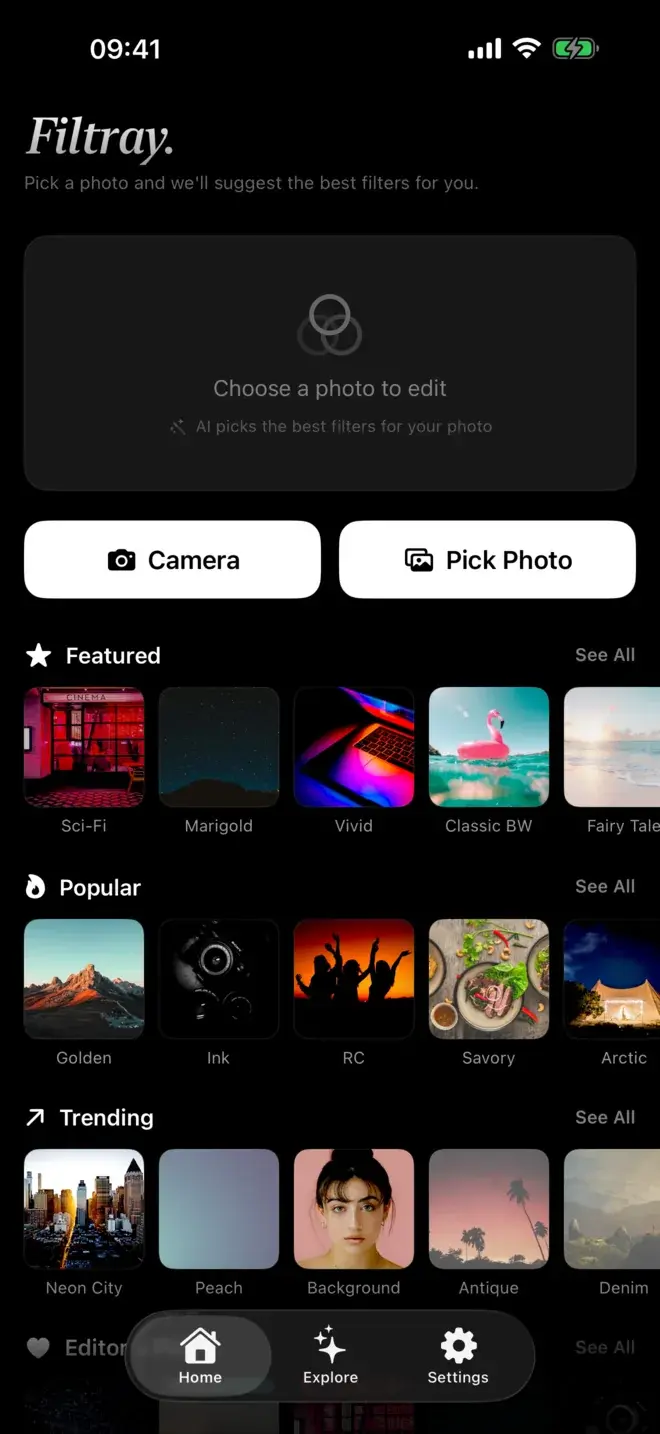
Filtray carries 1,000 filters across 25 categories, and one of those categories is Portrait: 40 looks built specifically for faces. You do not have to go hunting for them, though. When you open a photo, Filtray's on-device AI looks at the image first, including whether there are faces in the frame, and reorders the whole set so the best-suited filters come first. Faces in frame bring portrait looks up. Golden-hour light brings the warm ones up.
The analysis happens on your iPhone, in milliseconds. Your photos are never uploaded. There is no account and no sign-up. If you want the detail on how the sorting works, we wrote it up in how Filtray's AI picks filters, and on why it all stays on the device in on-device editing and privacy.
How to edit portrait photos on iPhone, step by step
The mistake most people make is turning a filter all the way up. A better habit is to start light and build only if the photo needs it.
- Start from the suggestions. Open the portrait and let the looks that surface first do the work. They are already sorted for the face in frame.
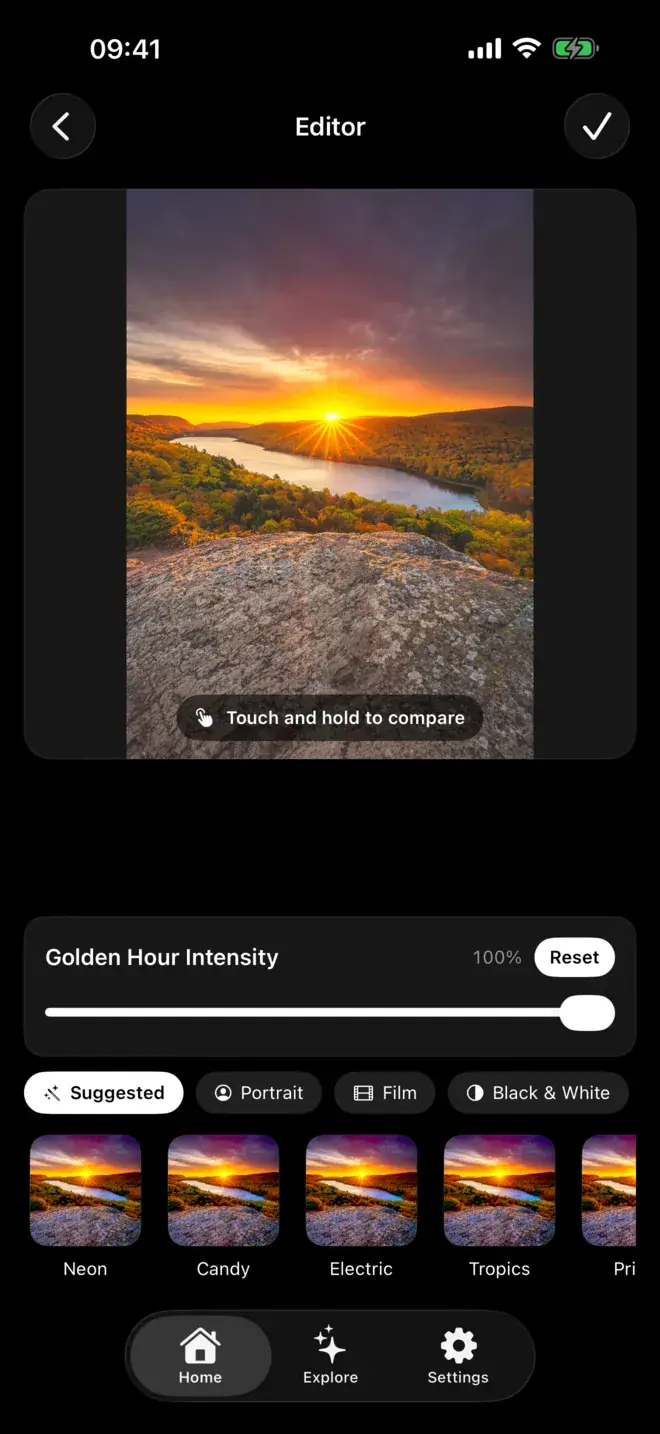
- Pull the intensity slider back. Every filter has one. Set it lower than feels right, then nudge up. Most portraits look best somewhere in the middle, not at full strength.
- Compare with touch-and-hold. Press and hold to see the original, release to see the edit. If the filter is not clearly better than the untouched photo, it is not the right one.
- Watch the skin, not the background. It is easy to grade for a nice sky and forget the face. Keep your eye on the complexion as you adjust.
- Export clean. Filtray exports at full resolution with no watermark, so the finished portrait is ready to print or post.
Which portrait look should you try?
Four categories cover most portrait situations. Here is when each one earns its place.
| Look | Best for | What it does |
|---|---|---|
| Portrait | Everyday portraits, family, anything you want to look effortless | Tuned for skin and faces. It cleans up colour and contrast while keeping skin honest, and it is the safest starting point. |
| Film | Warm, timeless portraits with a little character | Soft contrast, gentle grain and warm tones that flatter most complexions. |
| Black & White | Strong expressions, harsh or mixed light, dramatic close-ups | Removes distracting colour and puts the focus on form and emotion. |
| Moody | Low light, atmospheric or editorial portraits | Deeper shadows and cooler grading. Use a lighter hand so faces do not go murky. |
For a warmer, analogue feel there is more to say in getting a film look on iPhone, and for monochrome portraits our black and white notes carry over. If you want a printed keepsake rather than a single frame, Cabine turns four shots into a monochrome photo-booth strip.
Free or Pro?
Filtray is free to try, with three filters unlocked in every category, including Portrait. That is enough to find out whether the app suits how you shoot. Filtray Pro unlocks all 1,000 filters and turns on suggestions for every photo, so the full Portrait set and the AI sorting are available on every shot. Both tiers export at full resolution with no watermark, and Filtray needs iOS 18 or later.
Whichever tier you are on, the advice is the same: trust the first few suggestions, keep the intensity honest, and judge the result by the face.
Frequently asked questions
What is the best filter for portrait photos on iPhone?
The best portrait filter keeps skin tones natural, uses gentle contrast, adds a little warmth and keeps shadows open. In Filtray, start with the Portrait category or the looks the app suggests first, then pull the intensity slider back so the effect stays subtle.
How does Filtray know which filters suit a portrait?
Filtray's on-device AI looks at your photo before showing filters, including whether faces are in the frame, and reorders all 1,000 filters so the best-suited appear first. When it detects a face, portrait looks move to the top. The analysis runs on your iPhone in milliseconds and photos are never uploaded.
How do I edit portrait photos on iPhone without them looking overdone?
Start from the suggested looks, then lower the intensity slider before nudging it up, since most portraits look best below full strength. Use touch-and-hold to compare against the original, and keep your eye on the skin rather than the background.
Is Filtray free for portraits?
Yes. Filtray is free with three filters unlocked in every category, including Portrait, and all exports are full resolution with no watermark. Filtray Pro unlocks all 1,000 filters and enables suggestions on every photo. It requires iOS 18 or later.
Should I use colour or black and white for a portrait?
Use colour when believable skin tone matters and the light is flattering. Choose black and white for strong expressions, harsh or mixed lighting, and dramatic close-ups, where removing colour puts the focus on form and emotion.

Keep reading
How AI filter suggestions work
Why a good filter app can look at your photo and put the right presets first, instead of leaving you to scroll.
How to get a film look on iPhone photos
The film look is muted colour, gentle grain and softly faded blacks. Here is how to get it on your iPhone, and how to keep it subtle.
The best photo filter apps for iPhone in 2026
There is no single best filter app, only the best one for what you are trying to do. Here is how the main options compare, and who each one suits.